


Edit and fine-tune
Click Edit Budget on the confirmation, or open Budget → Edit Budget.
- Pick the year, then narrow with the Sales Rep, Customer and Product filters, or press Load entire budget. Loading a slice keeps large budgets responsive — until you choose, the grid prompts "Choose a filter to load a slice, or Load entire budget."
- Switch Measure between Revenue, Cost and Units.
- Type over any monthly cell.
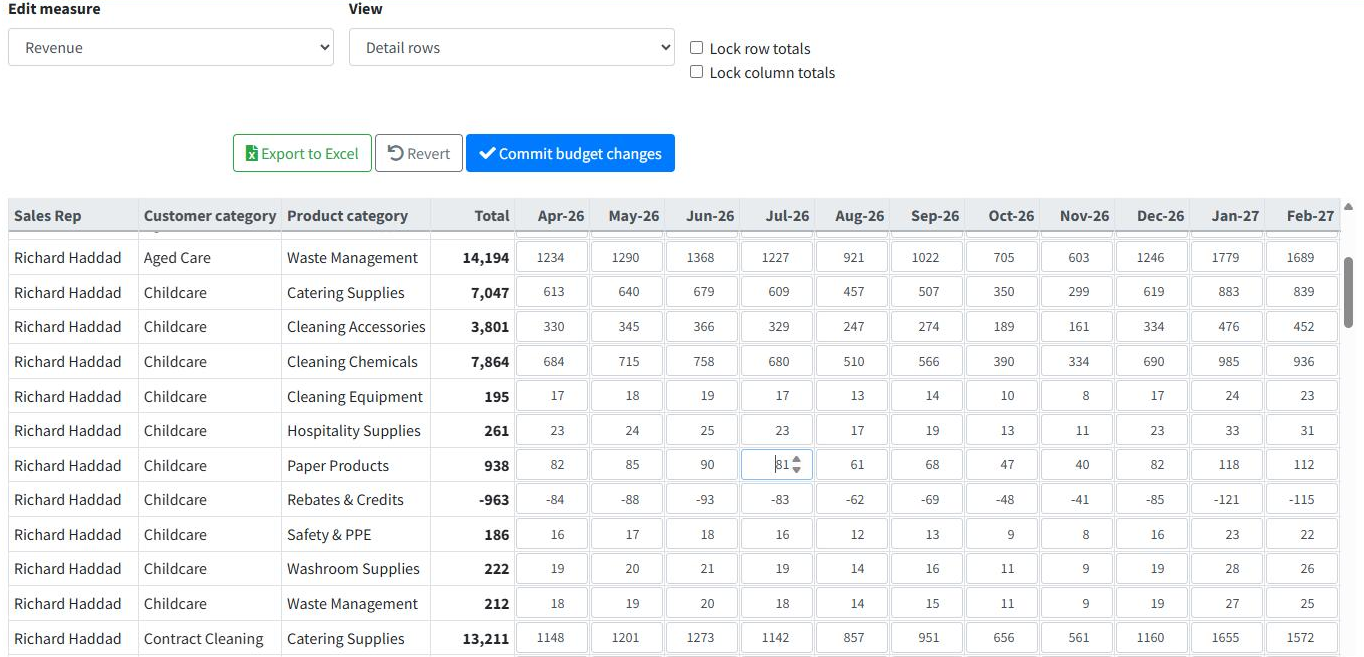 Detail view for one sales rep, with a monthly cell open for editing.
Two behaviours make editing safe:
- Pro-rata trio — change a cell's revenue and its matching cost and units scale with it, so margins stay coherent.
- Lock row totals / Lock column totals — with these ticked, an edit is redistributed across the other months (or other reps) to hold the total steady. This reshapes how the budget is spread without moving the bottom line.
Columns sort, labels and totals stay frozen as you scroll, and Export to Excel is available at any point. Revert restores the last saved version; Commit budget changes saves. Only cells you actually changed are sent — if there are none you are told "No changes to commit." — and navigating away with unsaved edits prompts first.
Editing by totals instead of line by line
A budget built at rep × customer × product grain can run to thousands of rows, and raising one salesman's year by 5% a row at a time is not realistic. The View dropdown rolls the loaded rows up to a single line per group:
| View | One row per |
|---|---|
| Detail | Every budget line, as stored — the default. |
| By Sales Rep | Sales rep. |
| By Customer | Customer, or customer group where the budget is held at category grain. |
| By Product | Product, or product group. |
Only the dimensions your budget actually carries are offered — the others are greyed out. A budget built without a product split has nothing to roll up By Product, so the option is not selectable.
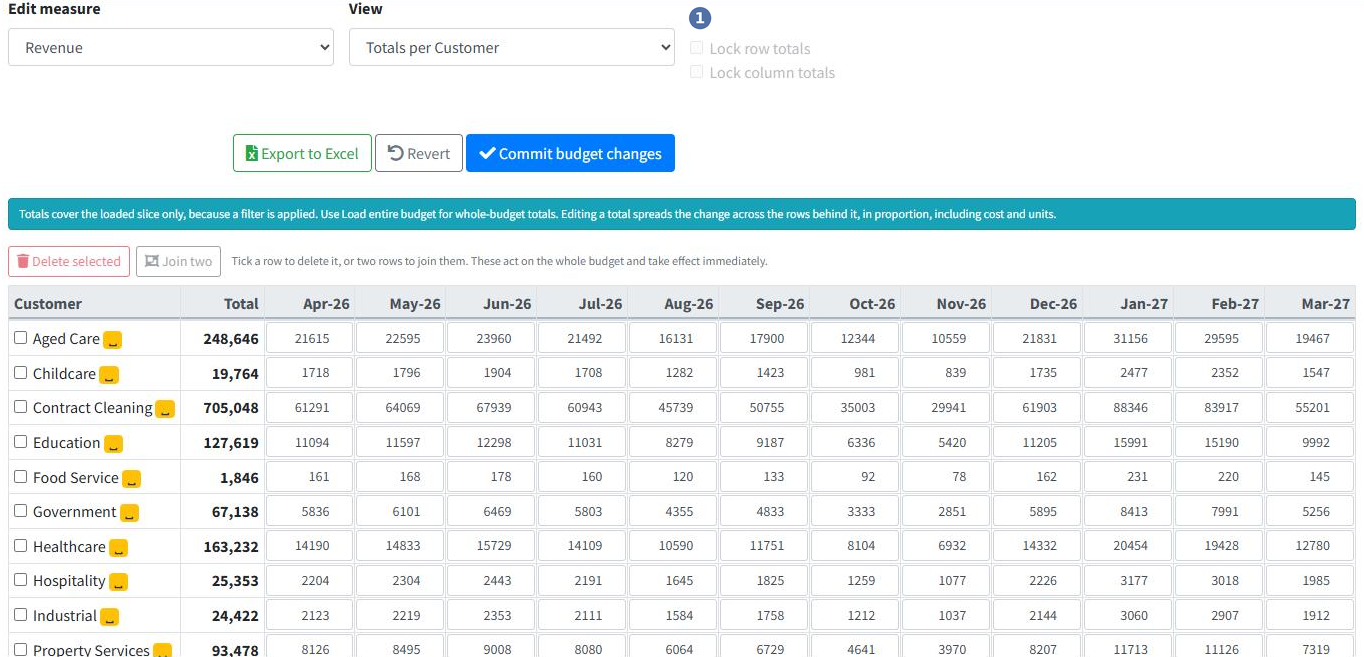 1 The View list, set to Totals per Customer. Note the total locks greyed out beside it.
Type a new figure over any monthly total and every budget line behind it is rescaled pro-rata, each keeping its share of the group. Cost and units move with the revenue exactly as they do on a single cell, so margins hold. A rounding pass puts any leftover cents on the largest contributor, so the group sums to precisely the number you typed rather than a cent away from it.
Two details worth knowing before you start typing:
- The Total column is a read-out, not an entry box. It sits frozen beside the labels, it sorts (click the heading to rank reps by size), but the year is shaped by editing the months. To lift a whole year by 5%, raise each month by 5% — or use a what-if at Create Budget, which is what that screen is for.
- A group sitting at zero splits evenly. Pro-rata needs existing shares to work from; where a month's group total is zero there are none, so the figure you type is divided equally across the rows behind it. Only the measure you are editing is set — cost and units cannot be inferred from a zero base, so set those explicitly if the month matters.
The total locks switch off in a totals view
Lock row totals and Lock column totals grey out as soon as you leave Detail, and that is deliberate: editing a total is a redistribution, and running a second one over the top of it would make the result almost impossible to predict. Use the locks in Detail to reshape without moving the bottom line; use a totals view to move the bottom line and let the shape follow.
Totals reflect what is loaded
If you arrived through a filter, the totals are the totals of that slice — a customer total under a single rep is that rep's share of the customer, not the whole. The banner above the grid says which you are looking at. Use Load entire budget for the complete picture. Switching between Detail and a totals view keeps any unsaved edits; they live on the same underlying rows.
Removing and combining rows
Two problems can only be fixed by changing which rows exist, not their values: a rep who has left and whose budget should pass to a colleague, and the same group entered twice under different spellings — Mitre10 and Mitre 10, or a name with a stray trailing space. Both are handled from any totals view.
Tick the box beside a row, then use the buttons above the grid:
- Delete selected — available with one or more rows ticked. Removes every budget line for those values.
- Join two — available with exactly two ticked. You are asked which of the two should remain, then the other is folded into it. Amounts are added together month by month, so nothing is lost: the survivor's total afterwards is the sum of the two before.
A name that begins or ends with a space is flagged with a ␣ badge, because otherwise it looks identical to the clean version on screen — which is usually how the duplicate went unnoticed in the first place.
These act on the whole budget, and cannot be undone
Unlike cell edits, delete and join apply to every row carrying that value across the whole budget year — not just the slice on screen — and they take effect immediately. Revert does not bring them back. Both ask you to confirm, naming exactly what will happen; read the confirmation before accepting.
Joining fixes the budget, not the sales history
Where you are merging two spellings of the same group, remember the actuals still carry both. The Budget Report reads actuals through your customer and product categories, so it will compare the combined budget against only part of the sales until the underlying customer or product data is corrected. Fix the spelling at source as well, or the report will look wrong in the other direction.